Instructor Guide
نیازمندیهای تکمیل
این راهنما به استادان کمک میکند تا کورسهای خود را مدیریت کنند، منابع آموزشی را بارگذاری نمایند، تکالیف ایجاد کنند و امتحانات را در مودل برگزار نمایند.
7:Gradebook Management Guide
This guide is designed to help instructors and course administrators manage, configure, and review student grades in the IOMAD Gradebook.
Accessing the Gradebook
To access the Gradebook, follow these steps:
- Log in to the system.
- Navigate to My Courses.
- Select the desired course.
- Enable Edit Mode.
- Click on the Grades tab.
You will now enter the Gradebook section.
|
Navigate to My Courses. |
Enable Edit Mode. |
Click on the Grades tab. |
|
|
 |
 |

Grade Report
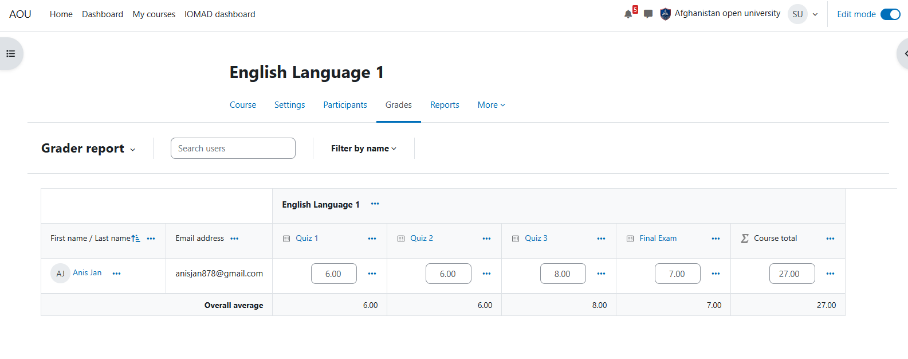
The Grader Report allows you to:
- View grades for all students.
- Check each student's overall grade.
- Review grades for individual activities such as:
- Assignments
- Quizzes
- Lessons
|
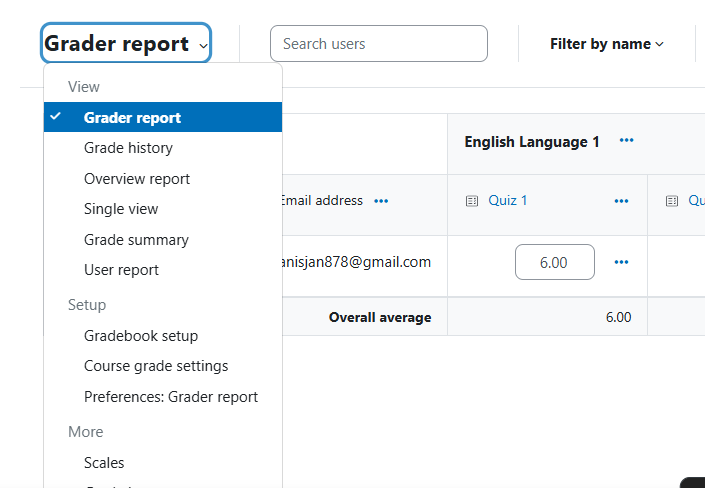
To access the Grade Report:
|
 |
Gradebook Setup
The Gradebook Setup section allows you to:
- Create grade categories.
- Assign weight percentages to categories.
- Configure the grading structure for the course.
Example Grading Structure
| Category | Weight |
|---|---|
| Lessons | 10% |
| Quizzes | 30% |
| Assignments | 60% |
Creating a Category
To create a new category:
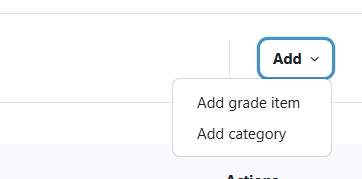
- Click Add.
- Select Add Category.
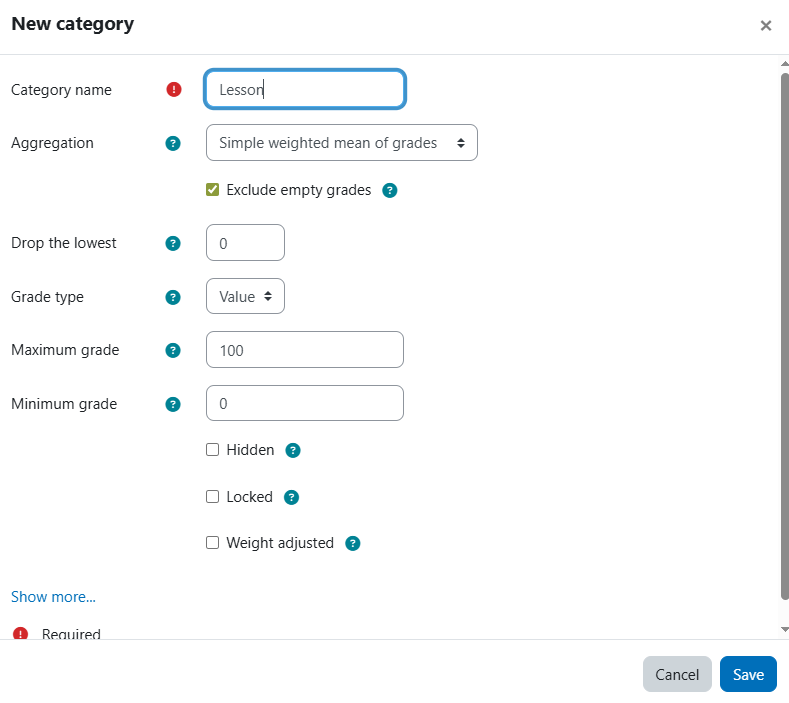
- Enter a category name (for example: Lessons).
- Click Show More.
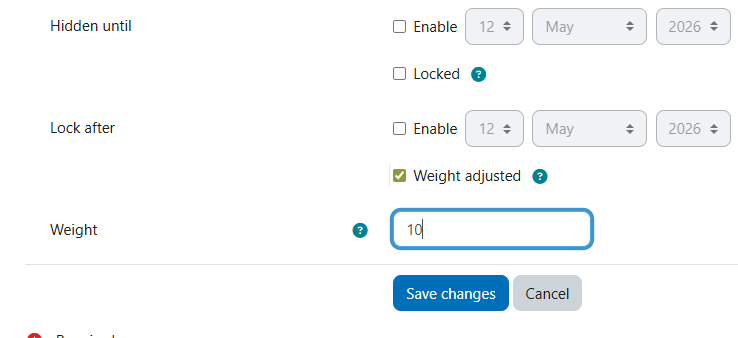
- Enable Weight Adjusted.
- Enter the desired percentage in the Weight field (for example: 10).
- Click Save Changes.
Repeat the same process for all required categories.
| Click Add. | Select Add Category. |
|
 |
 |
 |
|
||
 |
||
Assigning Activities to Categories
When creating a new activity or resource, make sure to select the appropriate category. This ensures that grades are calculated correctly according to the grading structure.
Examples:
- Lessons → Lessons Category
- Quizzes → Quizzes Category
- Assignments → Assignments Category
Important Notes
- Ensure that all category weights are configured correctly; otherwise, the final grades may be calculated incorrectly.
- Always click Save Changes after making modifications.
- Verify that all graded activities are assigned to the correct categories.
- Review the Gradebook setup periodically to ensure grading accuracy and consistency.